GREEN SCREEN REMOVER / EXPORT HELP
Why is my green screen export black? Check the alpha channel
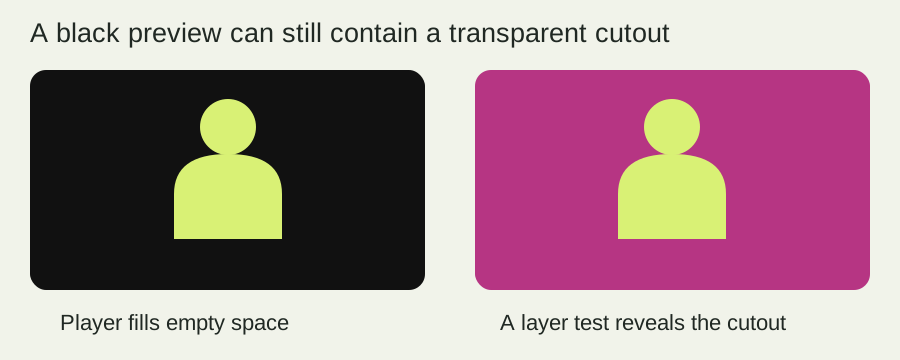
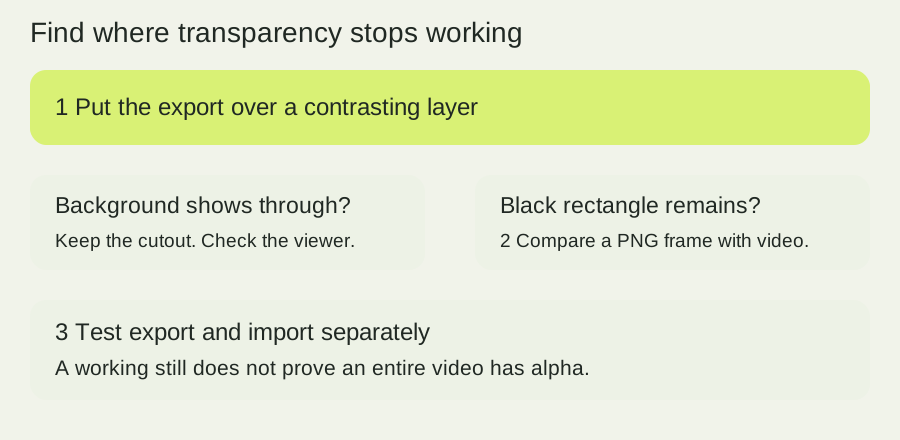
Put the exported file over a bright background in the editor where you will use it. If the bright layer shows through, the file is transparent and the player was displaying black behind it. If it stays black, check the export and the importing app’s alpha support before changing your green screen remover settings.
On this page
Start with a layer test, not another key
A player can fill unused space with black. That appearance alone does not tell you whether the file contains an alpha channel. In your destination editor, place a bright magenta or blue solid beneath the exported clip. Scrub through the start, middle and end. Check the subject’s edge as well as the empty area.
If the new background is visible, keep the cutout and continue editing. If the rectangle remains black, the export may be flattened, or the destination may not decode its alpha. A file extension by itself cannot distinguish those cases.
Try our three-file alpha diagnostic
This original diagnostic deliberately separates three situations that can look convincing in a preview: actual empty pixels, an opaque black fill, and a painted checkerboard. The fixtures are constructed examples, not footage-quality tests. Each is exactly 240 × 160 pixels, or 38,400 pixels in total. The right half is an opaque green rectangle in all three.
Check a still image on your device
Choose a PNG, WebP or JPEG, up to 20 MB and 16 million pixels. The checker decodes it locally and counts every alpha value. It does not upload your file. It does not inspect WebM, MOV or MP4, and it does not prove that a video editor will import alpha correctly.
Or try the original control examples:
Choose an image or a control example to see its exact pixel counts.
Choose True transparency, then switch between white and black. The left half changes because there are no visible image pixels there. Its expected counts are 19,200 fully clear, zero partly transparent and 19,200 opaque pixels. Choose Black fill: the left half stays black on either background and all 38,400 pixels are opaque. Choose Painted checkerboard: the squares remain visible and all 38,400 pixels are opaque again.
Run these controls before inspecting your own still. They give you a known result for both a transparent file and two false visual cues. A fully opaque result means the decoded still has no transparency; it does not establish which earlier export step lost it. An image with a few transparent pixels may still have an opaque background elsewhere, so inspect the preview instead of treating a nonzero count as success.
Use this original export-versus-import worksheet
Keep the original export unchanged and duplicate it for testing. Write down the source filename, export format, destination app and the part of the image you expected to be empty. Then follow these three branches. This worksheet is an editorial troubleshooting method, not a benchmark of any particular editor.
- The still has alpha and the clip works over a colored layer. The key and that import path are doing their jobs. Stop re-keying. Use an editor or player that can show the background you want. Save the working file separately before making a delivery copy.
- The still has alpha, but the video is a black rectangle. Compare the export settings for the still and the clip. A PNG frame can preserve alpha while a separate video path flattens it. Import the same clip into another alpha-capable workflow, then repeat the colored-layer check. If one works and the other does not, the difference is in the delivery or import path; it is not evidence that every green screen pixel needs a stronger key.
- The still is opaque too. Return to the stage immediately before export. Hide any solid background layer. Check the preview over two contrasting colors, then export a fresh PNG and inspect it here. If the editor preview is transparent but that PNG is opaque, investigate export settings. If the preview already contains a solid rectangle, fix the composition before exporting again.
Record only what you observed. “PNG has 19,200 clear pixels” is a precise result for our control example. “Every editor supports my file” is not. Your own clip needs its own check, and a single frame cannot establish alpha across an entire animation.
Make one small handoff test before exporting everything
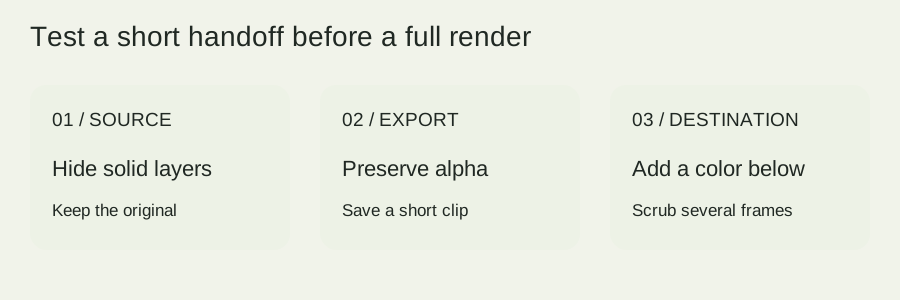
For a reusable overlay, choose a short section with both motion and empty background. Export it in your intended delivery format, place it over a contrasting layer in the destination, and scrub through several positions. Look for black rectangles, a painted checkerboard, bright edge halos and missing foreground. Save the working settings beside the file.
Use a two-column note: what the source editor shows, and what the destination shows. If the subject is intact in the source but boxed in the destination, keep the source and test another supported import path. If both show holes in clothing, go back to the key. This small handoff avoids rendering an entire project before discovering that its destination cannot use the result.
When you only need a finished video with a fixed background, composite that background beneath the subject before your final delivery export. That deliverable does not need reusable transparency. Keep an alpha-preserving master separately if you will need to change the background later.
Which PeelMyVideo export should I use?
Use PNG for one still frame, or a PNG sequence when your destination can import image sequences. Use the transparent WebM export when the receiving app supports its alpha. These paths are separate: verify the file you actually intend to use. PeelMyVideo video and sequence exports are silent. Keep the original audio elsewhere if your edit needs it.
Our recorded WebM decode tests include alpha measurements at fixed sample times. They demonstrate that tested browser path; they do not establish support in every player or web editor. The image checker above only checks stills.
Quick answers
Should I remove the black color again?
Check alpha first. Keying out black can remove dark clothing, hair or shadows along with a flattened background. If you still have the source, return to the transparent composition and export again.
Does renaming MP4 to WebM add transparency?
No. Renaming a file does not create an alpha channel or change its codec. Use an export path that preserves transparency and verify it at the destination.
Is a checkerboard proof of transparency?
No. The painted checkerboard control above is fully opaque. Inspect alpha values or change the layer beneath the image.
Can a PNG prove my entire video is transparent?
No. It can confirm one decoded still. Check the exported video independently and inspect multiple frames.
Sources and further reading
- User report and follow-up about a black video preview — A February 2025 discussion motivated this question; the author reports that compositing over another layer worked. This is a user account, not a universal format specification.
- WebM container guidelines — The WebM Project describes the container. Container naming alone is not a guarantee of alpha support in a receiving app.
- Our complete recorded video test data — Existing browser measurements and test settings, separate from the constructed diagnostic examples in this guide.