GREEN SCREEN REMOVER / EXPORT HELP
Why do dark corners remain after green screen removal?
Dark or dirty-green corners may differ from the sampled screen color, leaving visible background after keying. Inspect the matte, compare a second clear-screen sample, and recheck the subject before raising tolerance. If one setting cannot clear the backdrop while preserving the subject, improve the lighting or use a separate mask in an editor that supports it.
On this page
A corner is not always the same green as the center
A screen can look like one backdrop while recording several colors. Shadows, folds and reflections can create regions that respond differently to the selected key. A leftover corner is a background-coverage problem; a green tint on an otherwise opaque shoulder is a different problem. Inspect the matte instead of judging only a composite over black.
A public editing question describes a shadowed green screen and losing too much foreground while adjusting the key. That is evidence of a real troubleshooting task, not a measurement of our tool. Its suggested editing workflows do not establish features in PeelMyVideo.
Our original two-green control
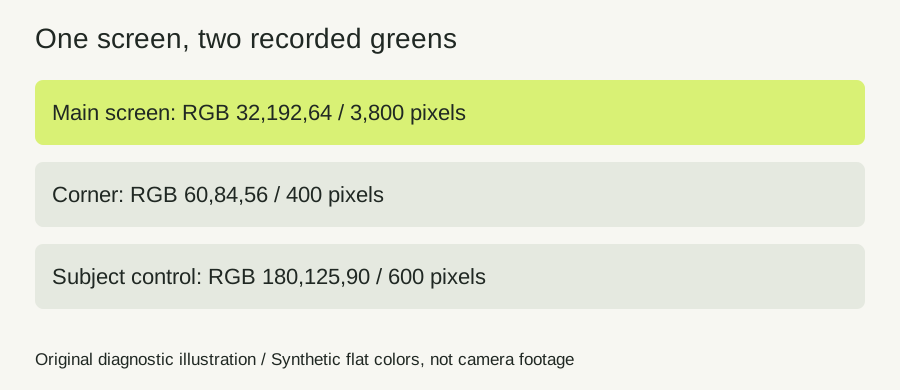
We constructed one 80 by 60 pixel opaque RGBA image. A 20 by 30 rectangle represents the subject: 600 pixels at RGB 180,125,90. A 20 by 20 upper-left corner uses RGB 60,84,56: 400 pixels. The remaining 3,800 screen pixels use RGB 32,192,64. These are deliberately simple blocks with separate labels so we can measure the regions independently.
We passed that buffer to the actual current PeelMyVideo keying function and its smoothing helper, extracted from the site source. The function changed pixel alpha in place. We tested tolerance 0, 10, 28 and 60 with softness and spill cleanup both zero. For each tolerance, we selected either the bright screen color #20c040 or the corner color #3c5438. No image decoder or file export was involved.
Measured alpha: compare the sample before chasing a slider
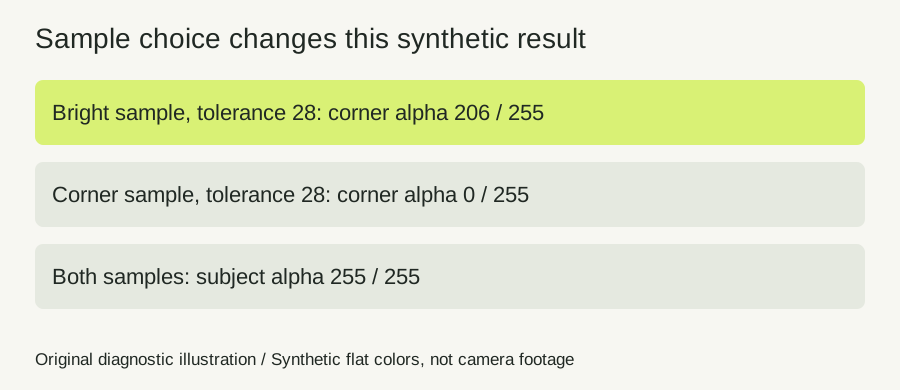
Alpha is reported on a zero-to-255 scale: zero is clear and 255 opaque. With the bright sample, the corner retained mean alpha 207, 207, 206 and 205 at the four tolerance values. The main screen was clear and the subject stayed opaque. Raising tolerance in this example barely changed that corner.
| Tolerance | Corner alpha: bright sample | Corner alpha: corner sample | Subject alpha, both |
|---|---|---|---|
| 0 | 207 | 0 | 255 |
| 10 | 207 | 0 | 255 |
| 28 | 206 | 0 | 255 |
| 60 | 205 | 0 | 255 |
With the corner sample, both background regions became fully clear at every tested tolerance, while the subject remained at alpha 255. That is the outcome for this exact source buffer and current keyer. It does not prove that sampling the darkest part always works. A real corner can contain noise, compression and foreground reflections that our blocks do not model.
This experiment isolates sample choice: dimensions, colors, subject region, softness and spill cleanup remain fixed. To reproduce it from our source project, run node scripts/check-uneven-screen.cjs. Keep the source version with the output because an algorithm revision can change these numbers.
Use a two-sample worksheet on your real frame
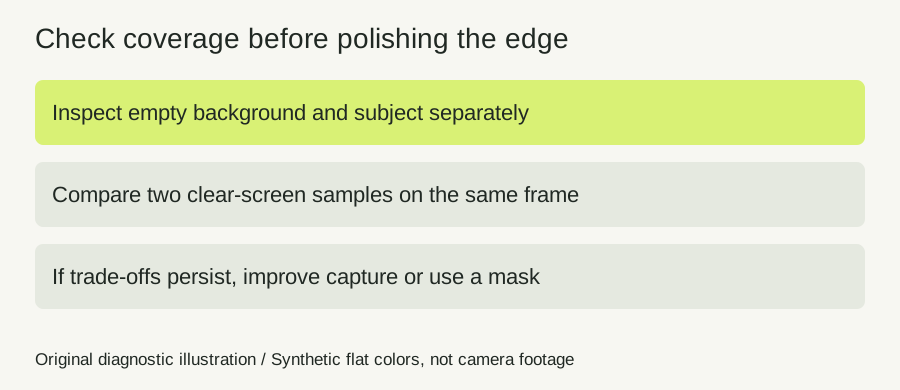
Freeze one representative frame and write down three inspection locations before changing controls: an empty bright area, the troublesome empty corner, and an important opaque part of the subject. Add a hair or moving edge as a fourth location when relevant. This avoids solving a corner while forgetting to check clothing.
Sample the bright area first, then record whether each background location clears and whether the subject remains solid. Save the selected color and settings. Next sample the clear corner, leaving the other controls unchanged. Repeat the same observations on the same frame. A region that contains the subject or a reflection is not a clean backdrop sample.
Choose the setting that preserves the required subject while clearing the needed screen. If both samples require a destructive tolerance, stop treating the control as a guaranteed repair. Record the trade-off. A before-and-after pair using different frames, background colors and slider settings cannot isolate which change helped.
What to do when no single key clears the screen
If you can record again, improve the physical backdrop first: reduce folds, light it more evenly and check for subject shadows. Make a short test recording with the actual wardrobe and movement, then inspect several frames rather than only the best still. The target is a setup that remains usable throughout the movement.
If the source cannot be replaced, another editor may provide a garbage matte or a separate regional mask to exclude empty corners while retaining the subject. A mask must leave room for the full movement. PeelMyVideo currently does not provide a tracked regional mask or a manual restoration brush; this is an external workflow option, not a hidden feature of our tool.
Keep two notes: what can be corrected in the capture, and what requires a different editing operation. This makes the handoff useful even if the current key cannot finish the shot. Do not repeatedly soften the whole subject until the corner becomes less noticeable.
Quick answers
Should I increase spill cleanup to erase the corner?
Do not assume spill color and remaining background are the same issue. Inspect opacity first; a tint change is not proof that a region became transparent.
Does increasing softness clear an uneven wall?
Softness changes edge transitions. Check the actual remaining background and required subject details after each adjustment.
What if clothing disappears instead?
That is a foreground color conflict. Read the green-clothing controls before widening the removed range.
The matte looks clear but my export is black. Is this the same problem?
No. Use the export transparency diagnosis to separate file alpha from player or import behavior.
Sources and further reading
- Original community question about a shadowed screen — Question and relevant replies read November 6, 2026. Exact original publication date not verified; relative cached dates are not converted into a guessed date. No Kdenlive compatibility test is claimed.
- Adobe: applying and refining a chroma key — Official guidance separates sampling, matte refinement and spill suppression, and recommends even screen lighting. Read November 6, 2026; product controls are not assumed identical.
- OnlinePNGTools chroma-key description — Fixed-domain benchmark page covers color similarity, edges and removal preview. Read November 6, 2026. Our contribution is the measured same-frame control and worksheet, not the idea of sampling a key.